



Device policy

Set what employees can and cannot do in the app.

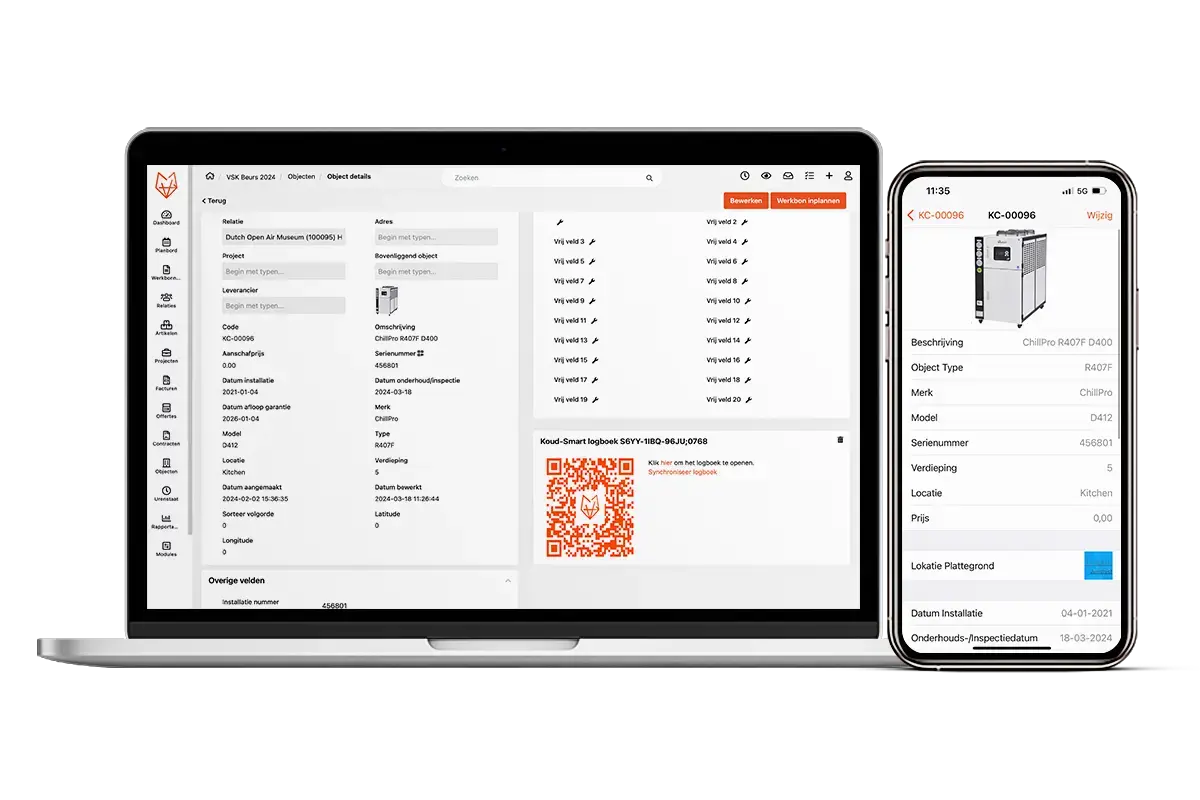
With Device Policy in OutSmart (also known as app settings) you determine which functions in the mobile app are available for your employees.

You can set certain actions to be mandatory – such as adding a signature or photo – or hide certain information, such as prices of materials. This way you tailor the work in the app exactly to your organisation.

5_stars    Over 20,000 happy daily users
Ben-with-phone

OutSmart Device Policy lets administrators control which features and functions are available to technicians in the OutSmart mobile app — per role, per team, or per individual. You decide what each user can see, edit, and submit: simplifying the app for field workers, enforcing process compliance, and preventing accidental changes to sensitive data.

No access control vs. OutSmart Device Policy

Topic Without OutSmart With OutSmart
App complexity Technicians see all features — most are irrelevant or confusing Technicians see only what they need for their role
Data integrity Anyone can edit or delete records — errors hard to trace Sensitive fields locked — only authorised roles can modify them
Process compliance Steps skipped because app allows it Required fields and steps enforced — no shortcuts
Onboarding time New technicians overwhelmed by full feature set Simplified view means new starters are productive faster
Mistakes in the field Technician changes wrong record — difficult to undo Edit rights restricted per role — accidental changes prevented
Multi-team setups Same app experience for installers and service engineers Different views per team type — each sees their relevant workflow
 

Let people work according to your desired standards

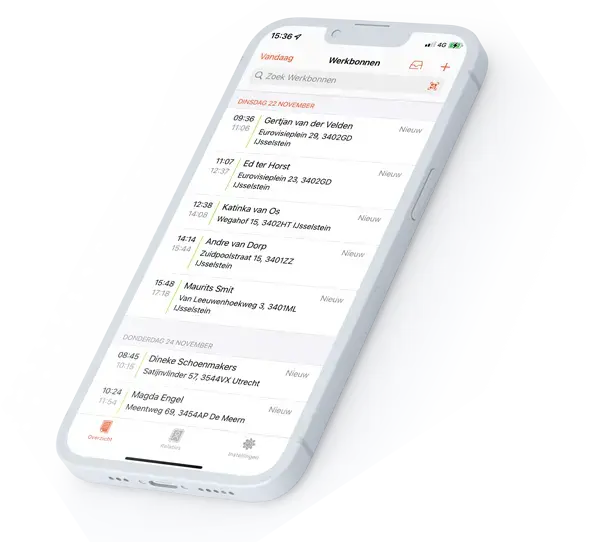
You can set general settings that apply to everyone but also make exceptions per employee. This gives flexibility and control while at the same time ensuring uniformity and clarity in your processes. The result: an error‑free and consistent registration in every work order.

Device Policy ensures that your team always works according to the desired standards without having to explain or check this every time. This improves the quality of your data and makes cooperation between field service and back office more efficient.
device-policy
 

A practical example

A maintenance company sets that technicians must always upload a photo after completing a job. This way there is always visual proof of the result, which prevents discussions with customers and ensures professional reports.

Benefits
  • Decide yourself which functions are visible or mandatory
  • More control over the quality of completed work orders
  • Flexible – settings for everyone or per employee
  • Ensures consistency and error‑free registration
Device LapTop + Mobile MockUp
3232784

Work orders per year

5172

Customers trust OutSmart

14
+

Years of experience

We constantly had to create work orders manually with pen and paper. By providing a clear digital system with many options, along with an excellent helpdesk that assists with everything, even the smallest questions, Outsmart has helped us.

Thomas Loos, Display4all

We used to lose work orders now and then, which made tracking time a challenge. With the easy digital entry of work orders, it's much simpler for the technician to manage the administration. Having 100% accurate work orders has definitely cut our administrative time in half.

Pascal Hanenbergh, Hanenberg Techniek


Frequently asked questions about OutSmart Device Policy

Device policy controls what each technician can see and do in the field service mobile app. OutSmart Device Policy lets administrators configure the app per role or team — hiding irrelevant features, locking sensitive data, and enforcing required process steps — so every technician works the way you intend.

You can control which menu items and screens are visible, which fields are editable or read-only, which form steps are mandatory, whether technicians can create or delete records, and what actions trigger notifications or approvals. Settings apply per role, team, or individual user.

Yes. Installation engineers, service technicians, and inspectors often need a different workflow in the app. Device Policy lets you configure a tailored experience per team type — each group sees the screens and options relevant to their work, reducing errors and confusion.

Yes. A simplified, role-specific app view reduces the learning curve for new starters significantly. Instead of navigating a full feature set on their first day, new technicians see only the screens and steps relevant to their job — making them productive faster.

Yes. You can lock records once they reach a specific status — for example, a work order set to "Completed" can be made read-only for technicians, preventing accidental edits while still being accessible to office staff with the appropriate role.

Yes. Changes to device policy apply the next time the technician opens the OutSmart app. There is no need to reinstall or reconfigure individual devices — the policy is managed centrally and pushed to all affected users automatically.

Device Policy applies to the mobile app. Separate role and permission settings in OutSmart control what users can access in the web interface — including the planning board, customer records, and reporting. Both systems work together to give each user exactly the right level of access.

Try OutSmart completely free for 14 days!